A full text search facility is Implemented across all Notebooks . This facility allows for records to be returned based on a search criteria of one or more words (in any order), or location within a range of fields in a single pass. The advantages of this are:
One doesn't need to know what field to use when searching as the search is conducted across the following data elements
File Reference
Category
Subject
IID
Source
Repository
Note Details
Case is of no importance when entering search values.
Partial words can be used if suffixed by an asterisk (*), e.g. convi* would search for Convict, convicts, conviction, etc.
Multiple words can be entered in any sequence, e.g. 'convict jones' produces the same results as 'Jones convict'.
The more words the narrower the search.
Each word must be separated by a space.
How to find a Note
Enter a search criteria into the FIND input box at the top right of the main screen
In the example the search is for notes relating to CONVICTS.
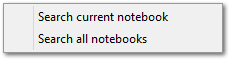
Click select the GO button to display drop down the search option list as shown below
If the SEARCH CURRENT NOTEBOOK option is selected the search is only conducted across Notes within the active Notebook
If the SEARCH ALL NOTEBOOKS option is selected, the search will be conducted across all Notebooks
Select the option required
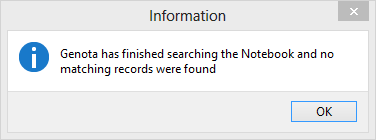
If no match is found a dialog similar to that displayed below will appear
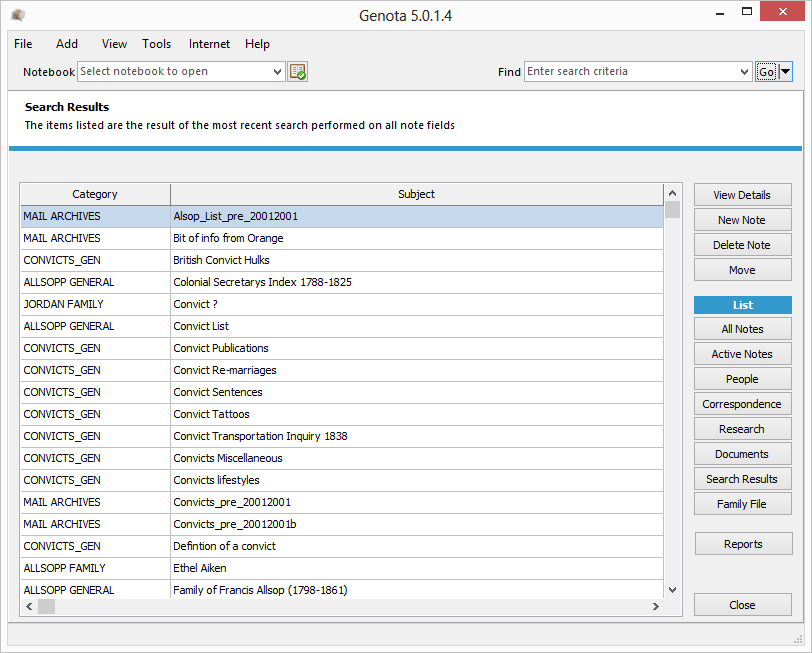
If a match is found the SEARCH RESULTS VIEW is displayed listing all matching records as shown below
To view the details of any Note, click select the SUBJECT to select a Note then select the VIEW DETAILS button