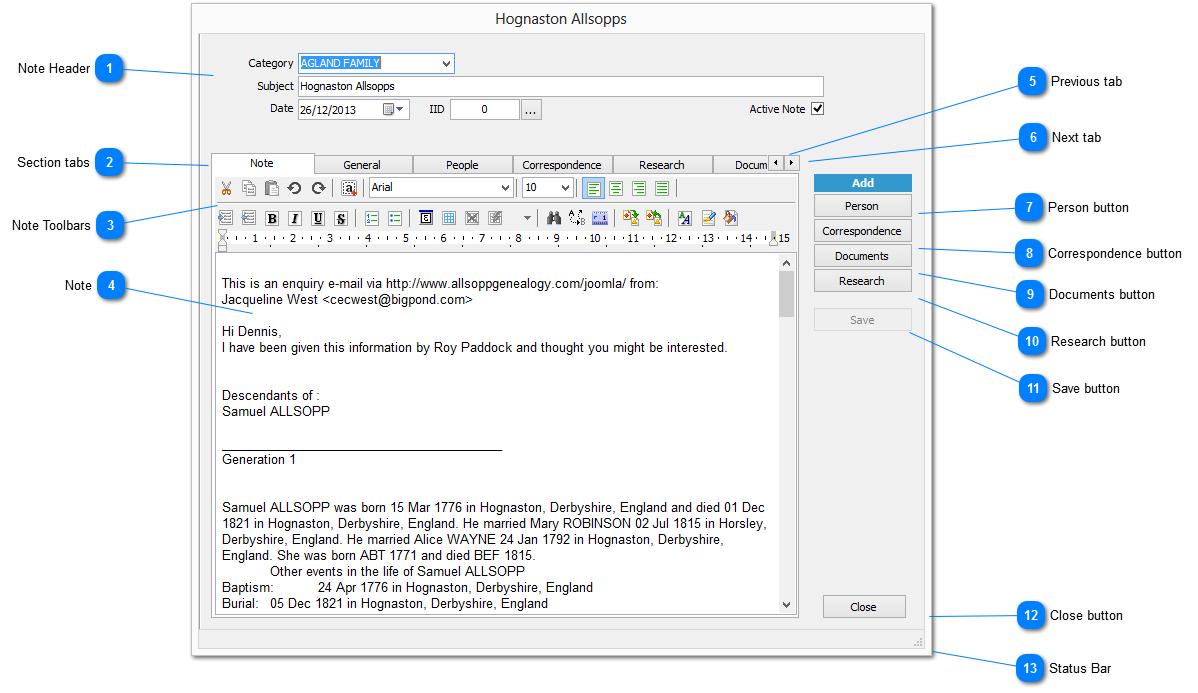
This is the screen where all information on a specific topic can be recorded as a note
Multiple note can be opened at the same time to enable comparative analysis and to cut and paste information between them if required
At the top of each NOTE DETAILS screen appears the SUBJECT assigned to the note
 Note Header
The NOTE HEADER contains the basic information required by each note |
|
 Section tabs
The section tabs enable the movement between the various sections comprising the note
The sections are:
Note
|
|
 Note Toolbars
The NOTE TOOLBAR is a collection of editing tools available to the user when creating a note |
|
 Note
A rich text editor for recording the core information of the note
|
|
 Previous tab
Move to the previous tab on the SECTION TABS
Use if a SELECTION TAB is not visible due to the screen size
|
|
 Next tab
Move to the next tab on the SECTION TABS
Use if a SELECTION TAB is not visible due to the screen size
|
|
 Person button
Displays the INCLUDED PERSONS dialog to enable the adding of Individuals to a note |
|
 Correspondence button
Displays the CORRESPONDENCE dialog to enable the adding of Correspondence items to a note |
|
 Documents button
Displays the DOCUMENTS dialog to enable the adding of Documents to a note |
|
 Research button
Displays the RESEARCH ITEM dialog to enable the adding of Research items to a note |
|
 Save button
Save changes to the note to file
|
|
 Close button
Close the note and return to the NOTE LIST
If any changes have been made to the record a confirmation dialog will display if the information has not been saved
|
|
 Status Bar
Grab the corner by holding down the left mouse button to resize the screen
|
|